![ORCODA_Inline_Logo_App_RGB-1.png]](https://knowledge.orcoda.com/hs-fs/hubfs/ORCODA_Inline_Logo_App_RGB-1.png?height=40&name=ORCODA_Inline_Logo_App_RGB-1.png)
Creating a New Cost Schedule
To configure a new pricing structure:
1. Open Financial Settings: From the main navigation, go to Settings > Financial > Cost Schedules.
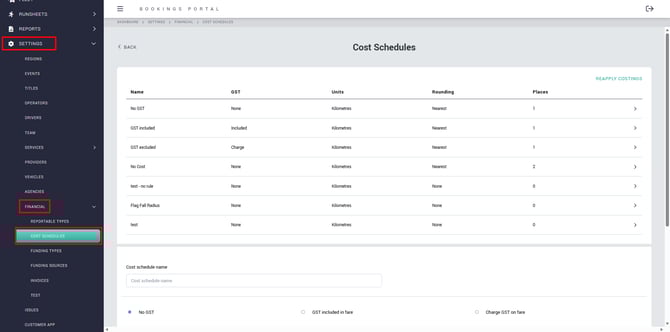
2. Add a New Schedule: Scroll to the Add Cost Schedule section at the bottom of the page.
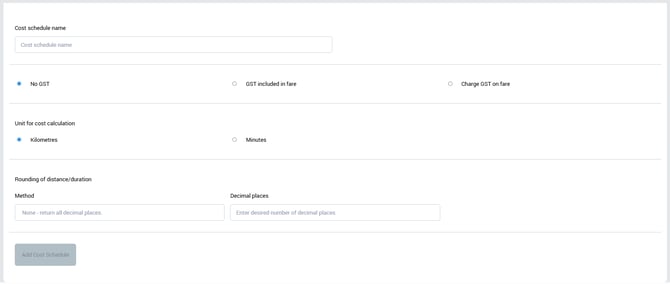
3. Configure Core Settings:
- Cost schedule name: Enter a clear, descriptive name.
- GST rule: Select one of the following options: “No GST”, “GST included in fare”, or “Charge GST on fare”.
- Unit for cost calculation: Choose Kilometres to charge by distance, or Minutes to charge by trip duration.
- Rounding: Set your preferred rounding method and the number of decimal places for final totals.
4. Save the Schedule: Click ADD COST SCHEDULE.
Configuring Pricing Rules
After creating a schedule, add pricing rules (tiers) to define the actual costs:
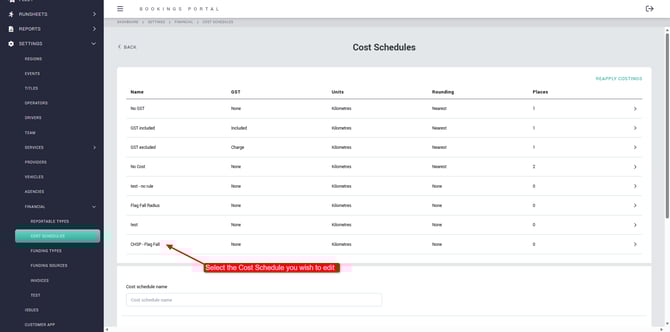
1. Open the Rules View: From the main Cost Schedules list, click the name of the schedule you want to configure.
2. Add a Rule: Use the section at the bottom of the Cost Schedule Rules page.
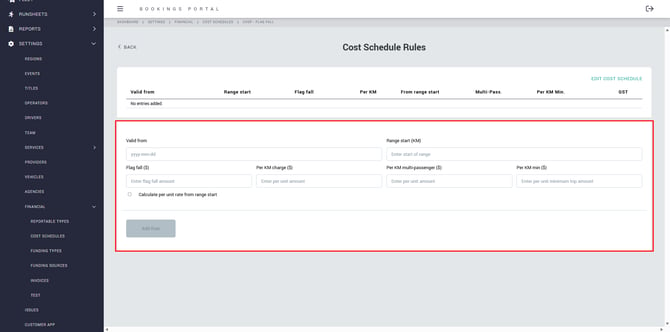
3. Enter Rule Values:
- Valid from: Choose the date this pricing tier becomes active.
- Range start: Enter the starting unit (for example, 0 KM or 31 Minutes) for this price band.
- Flag fall ($): Set the fixed starting fee for each trip.
- Per unit charge ($): Set the variable rate per KM or per Minute.
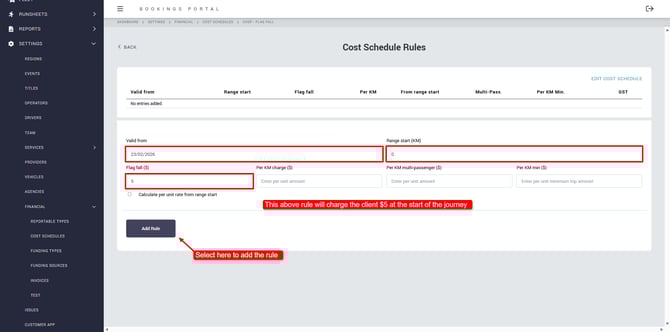
You can then add additional rules to apply to this Cost Schedule as shown below:
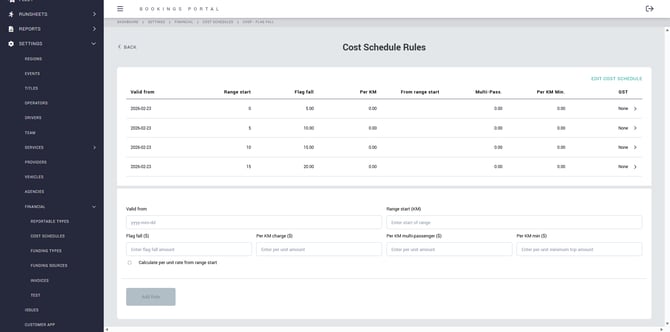
Under this Cost Schedule, the fare is $5 at 0 km (starting fare), $10 for 5 km, $15 for 10 km, and $20 for 15 km.
You are not limited to using only a flag fall or only a per‑km charge across the entire schedule; you can combine these options by applying a flag fall to some line items, a per‑km charge to others, or both on the same line item.
4. Apply Advanced Logic (optional): If you select “Calculate per unit rate from range start”, the per‑unit fee is only applied to units above the range start (for example, if a trip is 40 minutes and the tier starts at 30, the system charges only for the 10 minutes above 30).
5. Save the Rule: Click ADD RULE and repeat for each additional pricing tier required.
Updating an Existing Cost Schedule
To adjust pricing or tax settings on an existing schedule:
- Edit Schedule Settings: On the Rules page, click EDIT COST SCHEDULE (top right) to modify the schedule name, GST rules, or rounding settings.
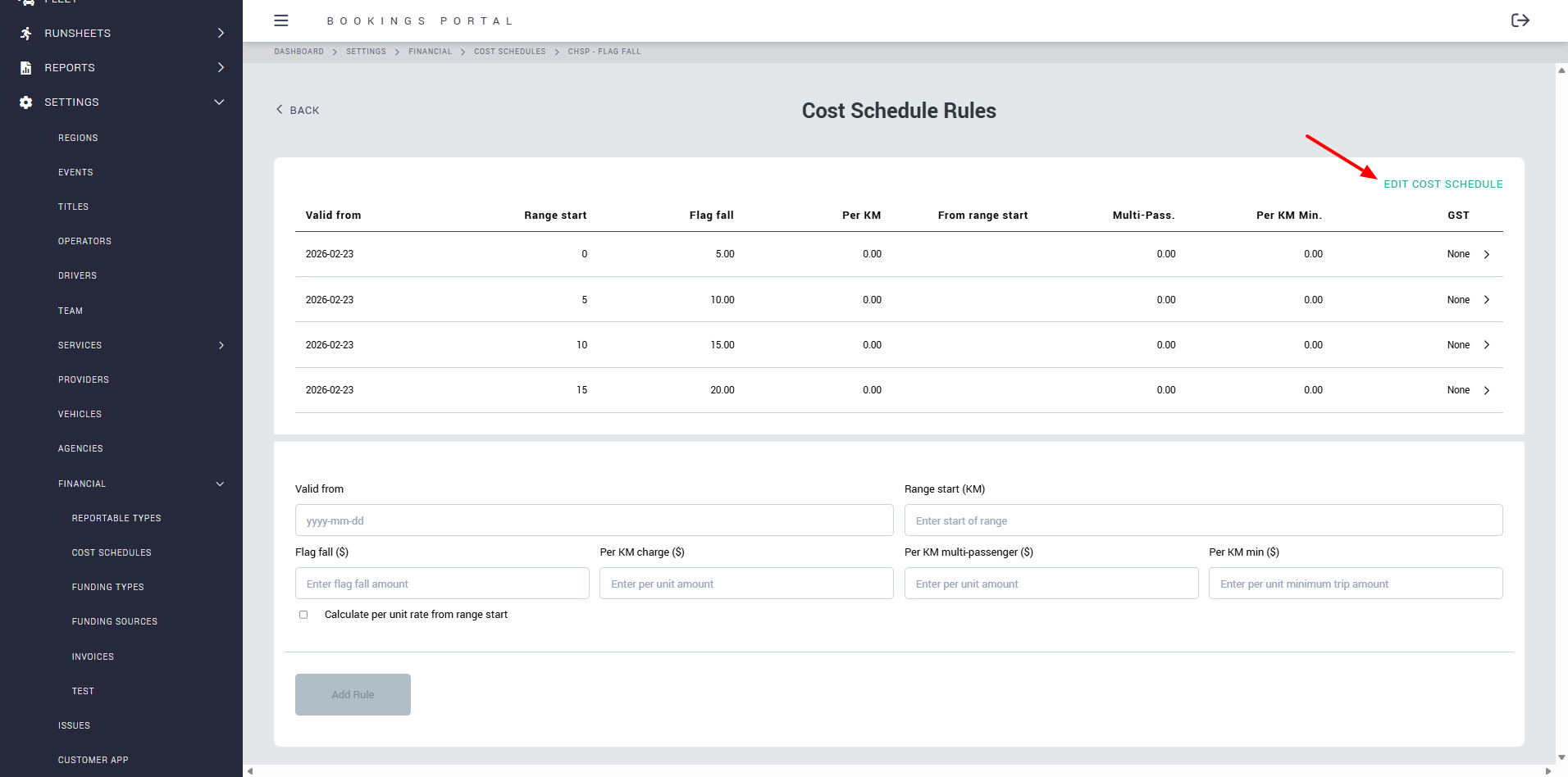
- Update Individual Rules: Click any rule in the table to open the Edit Cost Schedule Rule page and adjust the flag fall or per‑unit charges.
- Save Updates: Click UPDATE RULE or UPDATE COST SCHEDULE to confirm and apply your changes.
Applying Updated Costs to Existing Bookings
Changes to a Cost Schedule do not always automatically flow through to past or already‑confirmed bookings. Use the following options to keep cost data current:
- Automatic Updates for Recurring Bookings: When a schedule is updated, future recurring bookings (marked with a “spanner” icon) are automatically recalculated during nightly processing.
- Manual Batch Updates (Reapply Costings): To update a large set of existing bookings, use the REAPPLY COSTINGS link on the main Cost Schedules page.
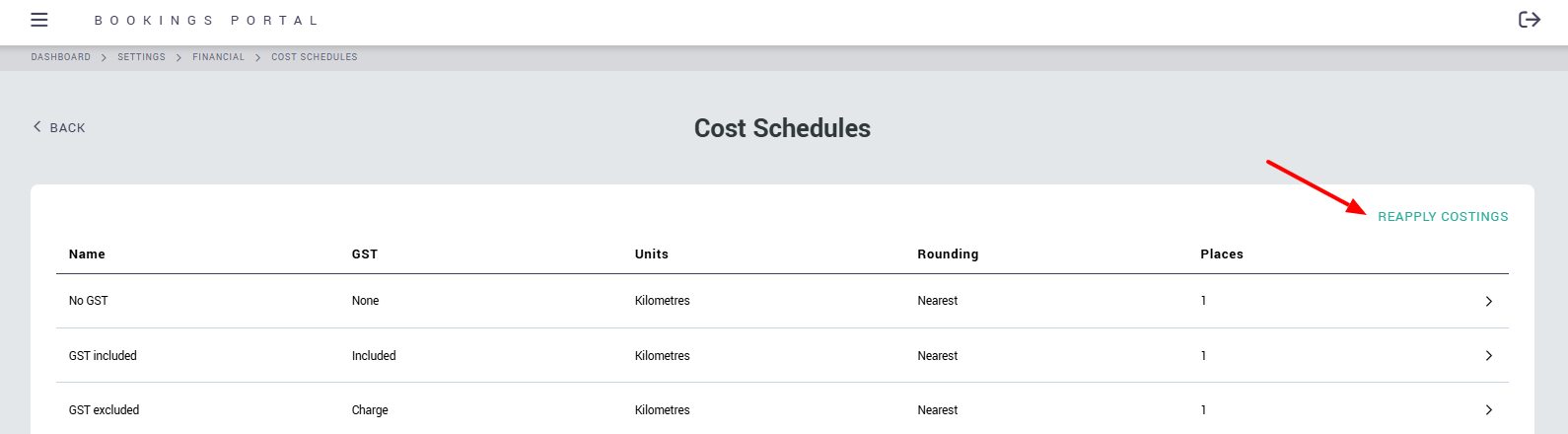
1. Select the Region and Date Range you wish to update.
2. Specify the Cost schedule name and/or Funding source name to target the relevant trips.
3. Click REAPPLY COST SCHEDULE to run a bulk recalculation.
- Recalculate Individual Trips: To update specific trips for a single client, go to the client’s Full Profile > Funding Sources, select the relevant funding source, and click SHOW TRIPS. Select the trips to update and click RECALCULATE SELECTED.