![ORCODA_Inline_Logo_App_RGB-1.png]](https://knowledge.orcoda.com/hs-fs/hubfs/ORCODA_Inline_Logo_App_RGB-1.png?height=40&name=ORCODA_Inline_Logo_App_RGB-1.png)
Mutli Leg Bookings is a new feature in the booking form that allows the user to add multiple stops/legs to a transport booking for a client.
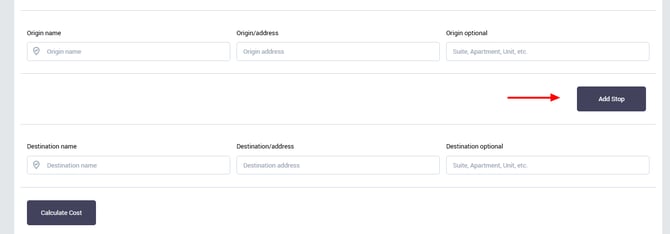
The "Add Stop" button is located in between the origin and destination fields in the booking form as shown below.
There is no limit on the number of stops a user can add in the booking form.
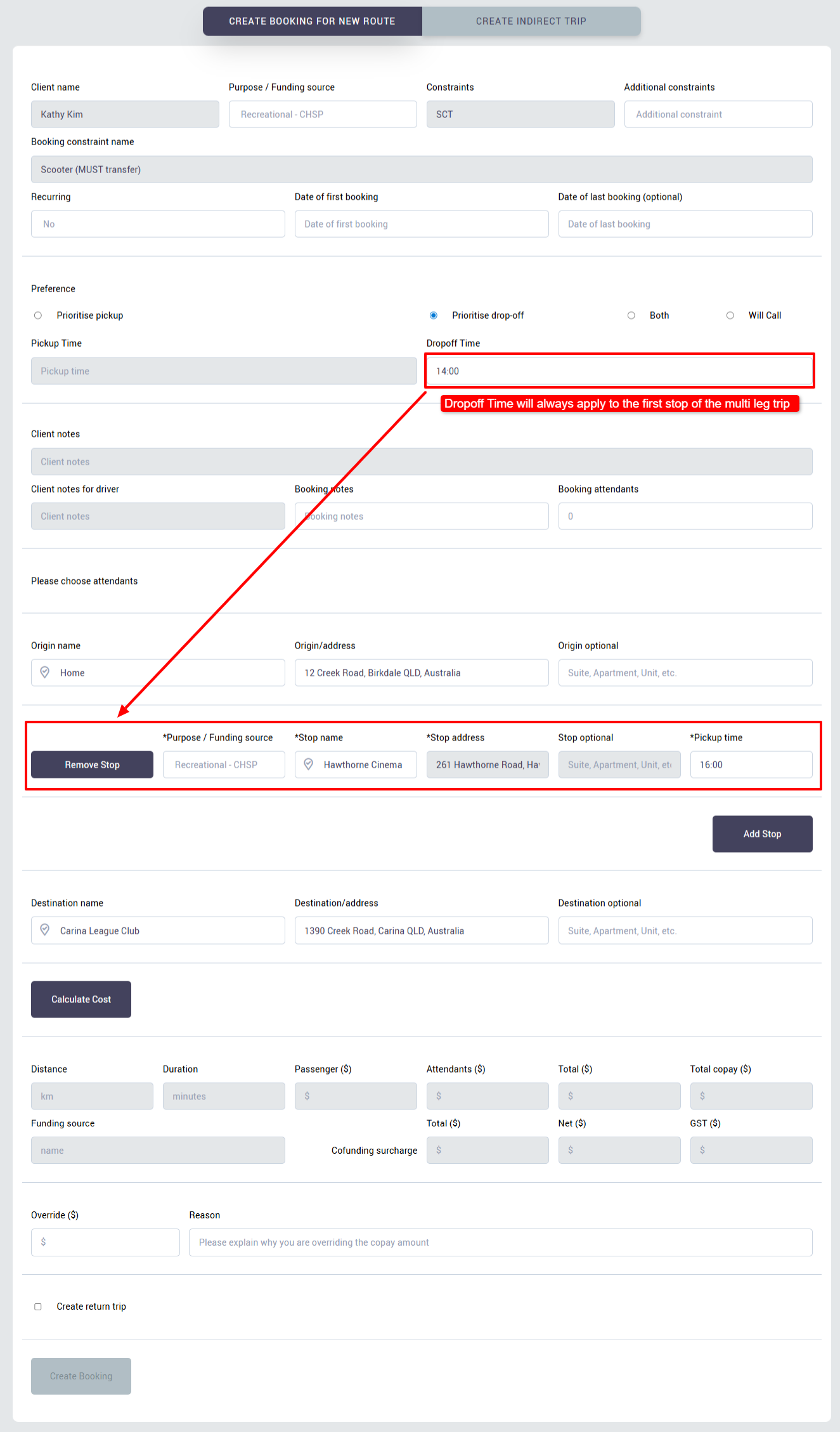
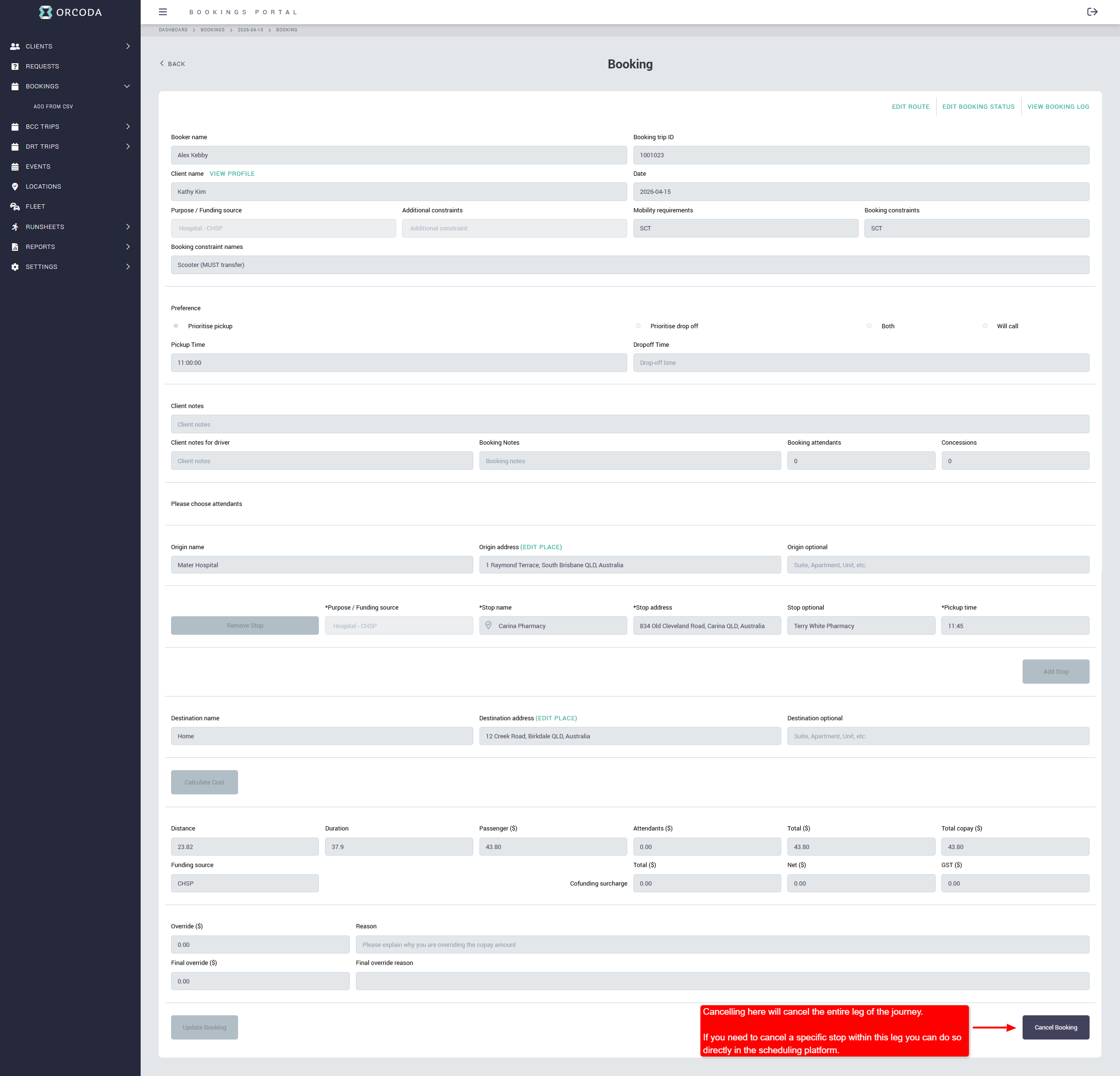
In the example below, we've created a booking for Kathy who will heading into the Mater Hospital for an appointment at 10am, after her appointment finishes at 11am, she'll be stopping by the pharmacy on the way home to collect her medication.
Please also note, when adding a stop on the outbound journey for a trip, the drop off time will be fixed to the first stop on the journey as shown below.
Multi Leg Cancellations:
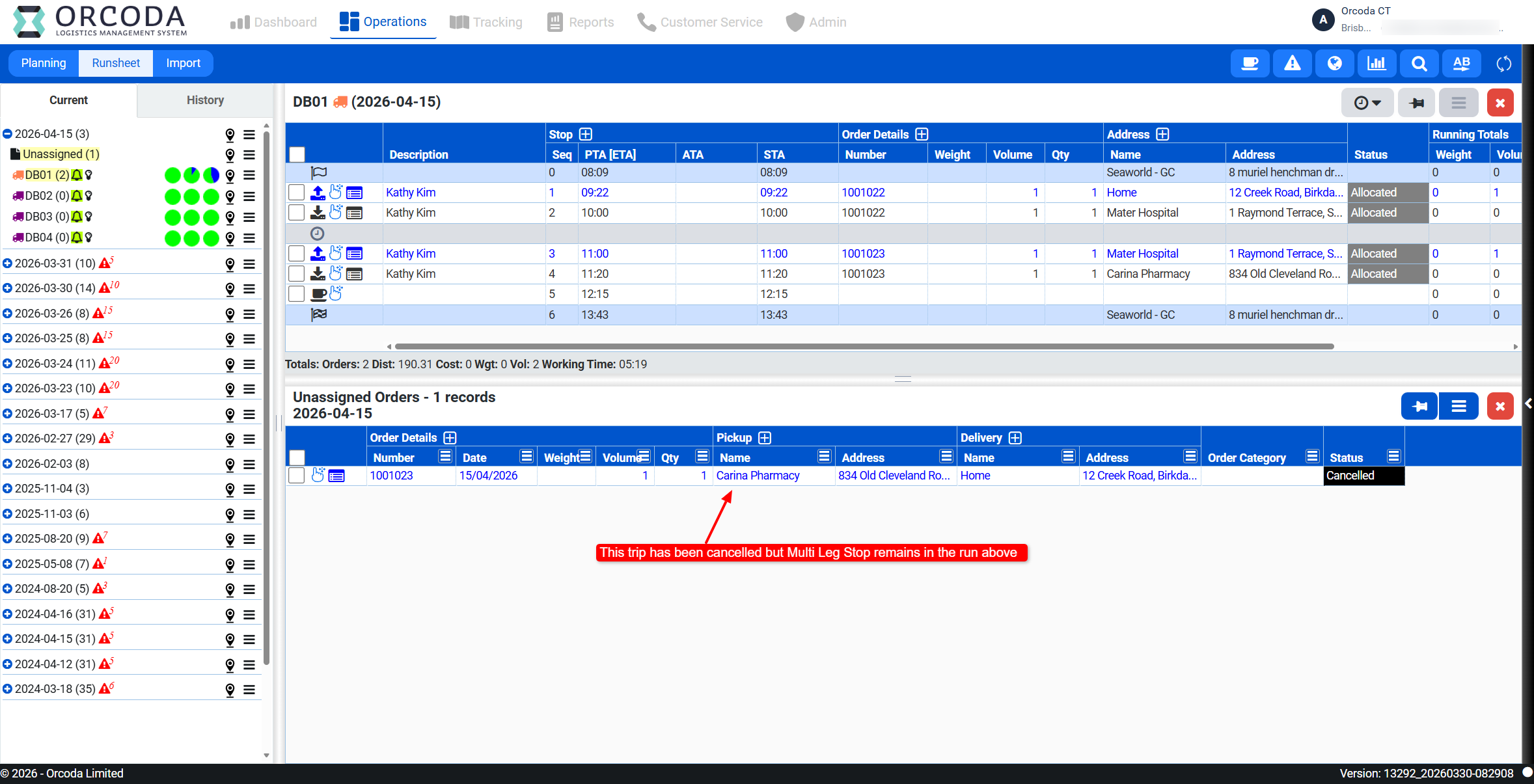
When creating a return trip using the new multi‑leg booking function, any leg that includes an additional stop is treated as a single booking. As a result, if a user cancels that leg through the Orcoda Booking System (OBS), the associated stop within that leg is also cancelled automatically, this only applies after the booking has been locked.
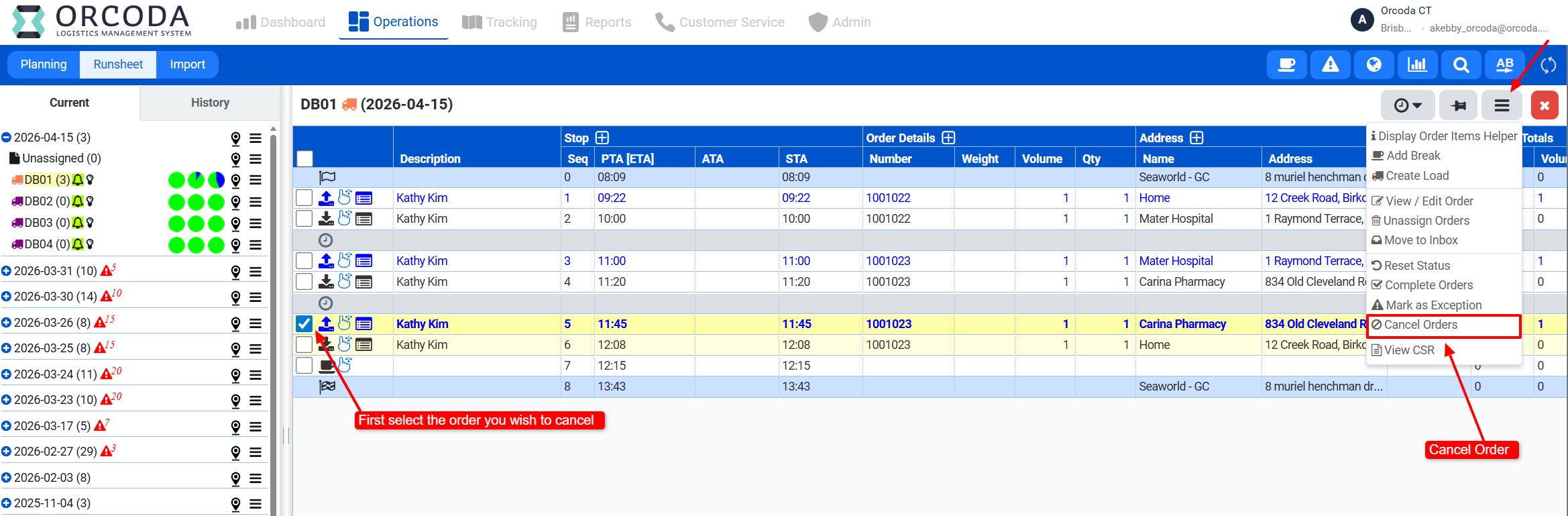
If the user only needs to cancel the individual stop, without cancelling the entire leg, and the booking has already been locked, they can manage this directly in the scheduling platform (Transport 360) by editing the specific stop within that leg as shown below.
OBS:
Transport 360: