![ORCODA_Inline_Logo_App_RGB-1.png]](https://knowledge.orcoda.com/hs-fs/hubfs/ORCODA_Inline_Logo_App_RGB-1.png?height=40&name=ORCODA_Inline_Logo_App_RGB-1.png)
Step 1: Locking Bookings in OBS
The first step in scheduling bookings, is to lock the day of bookings in OBS. Locking the bookings in OBS initiates the sync of bookings between OBS (Orcoda Booking System) and Transport 360.
- How to Lock: Navigate to the Day’s Bookings page and click the LOCK BOOKINGS link
.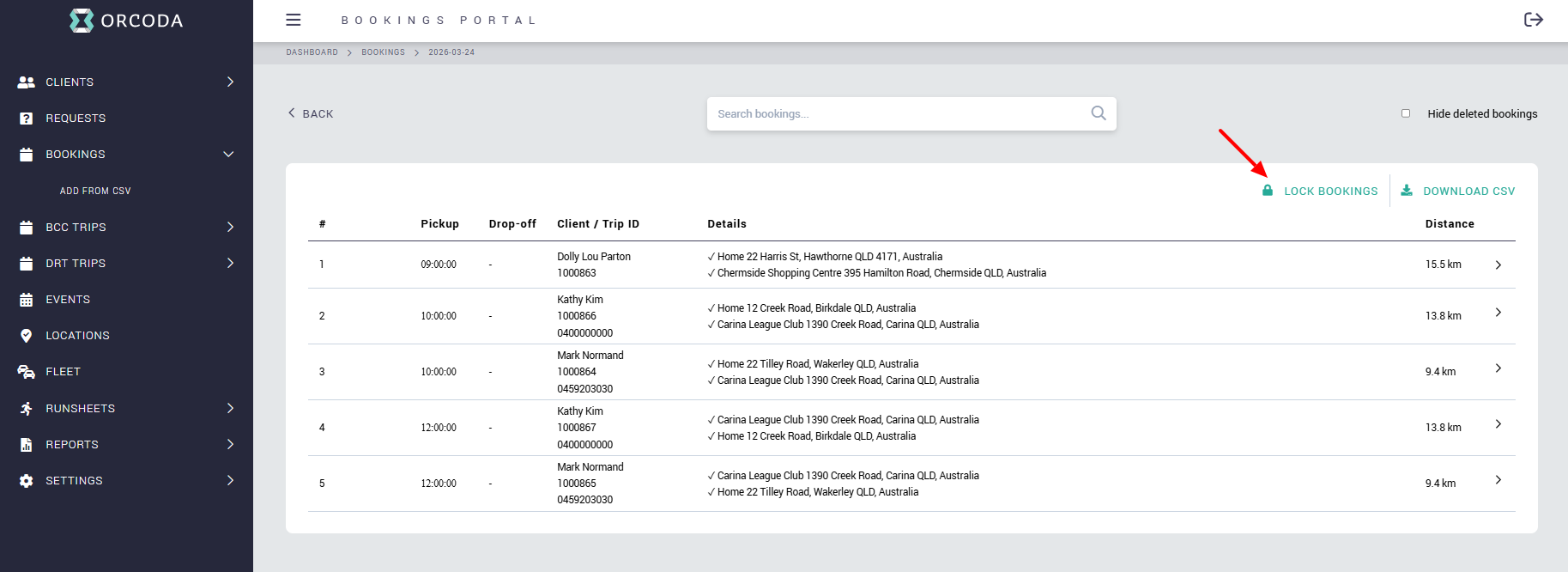
- Select Region: Choose the specific region you want to process and click the Lock Bookings button.
- What Happens Next: Once locked, event details can no longer be edited in OBS (though you can still cancel/delete bookings if needed).
- Late Bookings: If a booking is added after the day is locked, it will appear in blue in OBS and will automatically move to the UNASSIGNED folder in OLMS for manual handling.
Step 2: Planning Your Day with Scenarios
In Transport 360, you don't work on the live runsheet immediately. Instead, you use a Scenario—a safe planning environment to test different vehicle and route configurations.
- Automatic Upload: Once OBS bookings are locked, the orders are uploaded into a scenario.
- Data Validation: During this upload, the system automatically assigns Site Times, Load/Unload times, and Time Windows based on saved customer attributes.
- Organizing Your View: Use the Planning panel to view your Inbox (all orders) and drag them into the planning grid.
Step 3: Using the Solver for Automated Scheduling
The "Solver" is the engine that does the heavy lifting of assigning dozens of orders to the right vehicles.
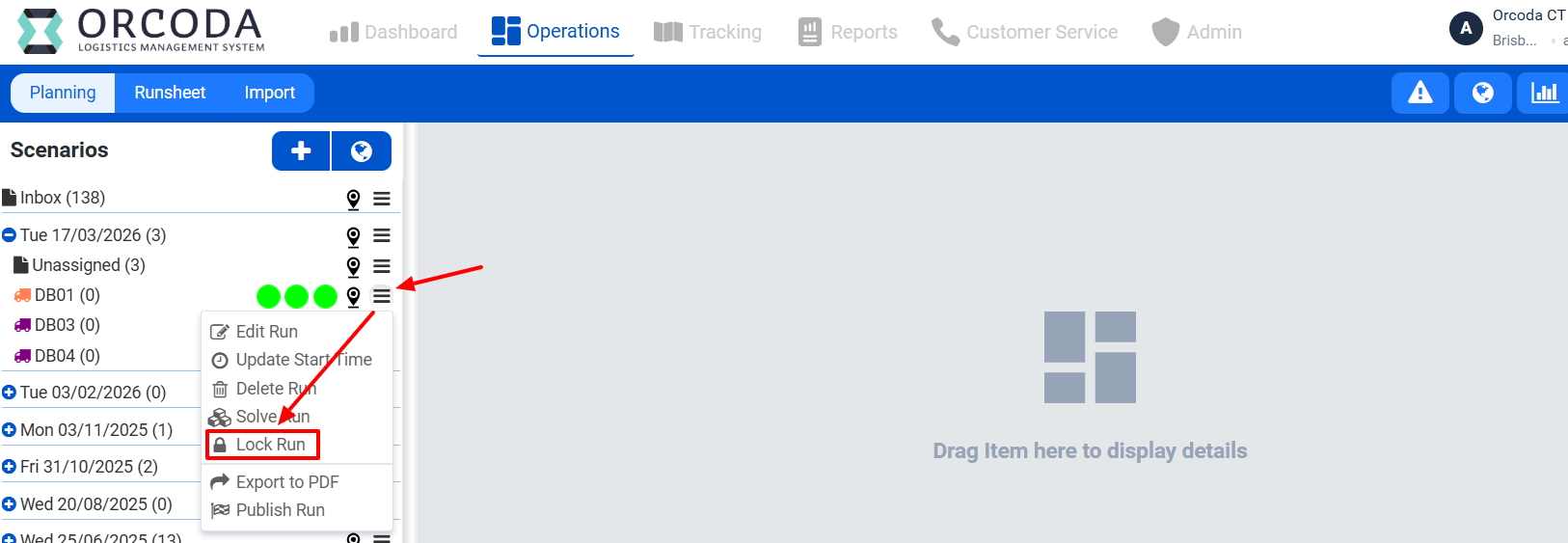
- Lock Runs - You can use the Lock Runs function to lock out specific runs from being used in the Solve Scenario tool.
- Solve Scenario: Use the Solve Scenario action to automatically allocate all unassigned orders into the most efficient runs based on capacity and timing.

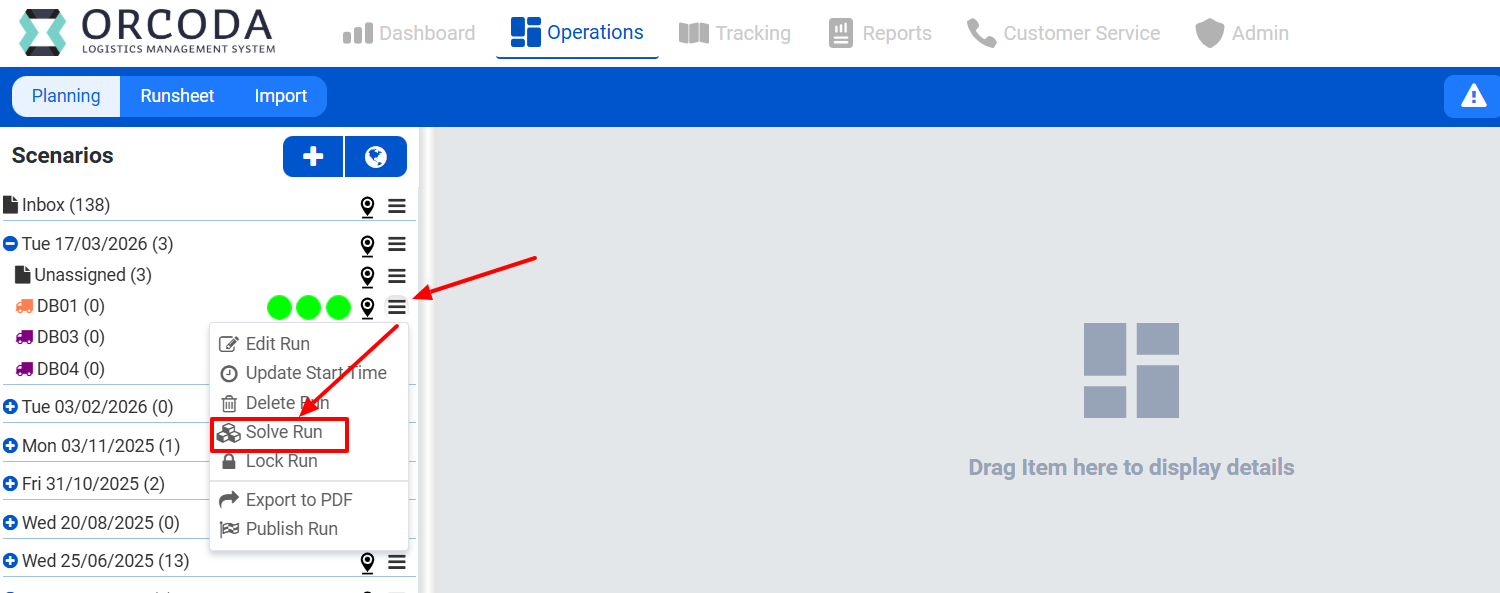
- Solve Run: If you only want to optimize the route for a specific vehicle, use the Solve Run action instead.
Step 4: Refinement and Fatigue Management
After the solver proposes a plan, you can refine it to meet specific operational needs or legal requirements.
- Adding Breaks: You can manually add breaks within a run by selecting an order and clicking Actions → Add Break.
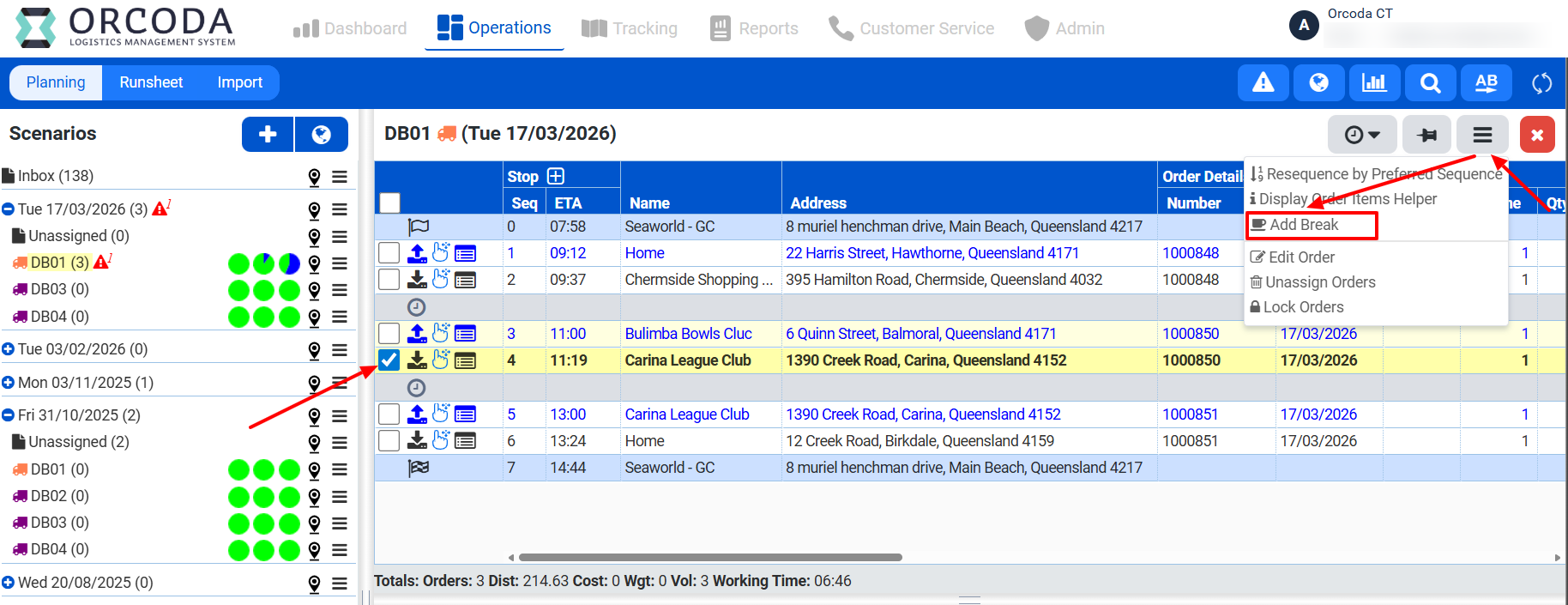
- Fatigue Policy: The system can apply Standard Breaks per the Heavy Vehicle National Law (HVNL) or allow you to configure Custom Breaks based on company policy.
- Manual Overrides: You can move orders between runs or use the Resequence tool to adjust the order of stops.
Step 5: Publishing the Runsheet
Once the plan is optimized and free of violations, it is time to make it official for your drivers.
- Final Check: Review the Scenario Summary to check for any violations or unassigned orders.
- Assign Drivers - Use the "Manage Drivers" tool to assign drivers to runs.

- Publish Scenario: Select Publish Scenario. You can publish the entire day or untick specific runs that aren't ready yet.
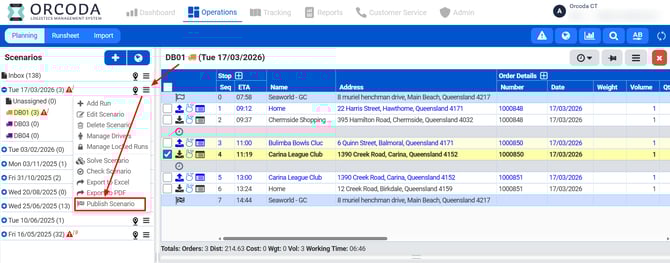
- Go Live: Clicking Publish moves the data to the official runsheet date, removes the scenario from your planning panel, and updates the order status for the drivers.