![ORCODA_Inline_Logo_App_RGB-1.png]](https://knowledge.orcoda.com/hs-fs/hubfs/ORCODA_Inline_Logo_App_RGB-1.png?height=40&name=ORCODA_Inline_Logo_App_RGB-1.png)
What is a Tracking?
In Transport 360, the ability to see where a single vehicle or all vehicles are at any one time can be important for a number of reasons. These can include on the day allocation, reviewing runs for future planning, driver training and safety. Transport 360 allows users to call up one or many of the live runs and display them in a map view which is often used on the day to confirm the location and status of the fleet in real time. In addition, the Tracking feature can be used to replay the journey of a vehicle in a list sequence and also on the map. Below is an overview of the features and how to use these in Transport 360.
Consideration
The speed and accuracy of the Tracking is somewhat configurable but will depend on how the vehicle data is transmitted to Transport 360. There are two(2) typical options for receiving vehicle data:
1) GPS location data is sent to Transport 360 from the device sim card. This is usually at a rate of every 2-3 minutes to avoid excessive data transmission.
2) GPS location data is sent to Transport 360 from a telematics device in the vehicle. This is far more accurate and is sent every few seconds.
Accessing Tracking
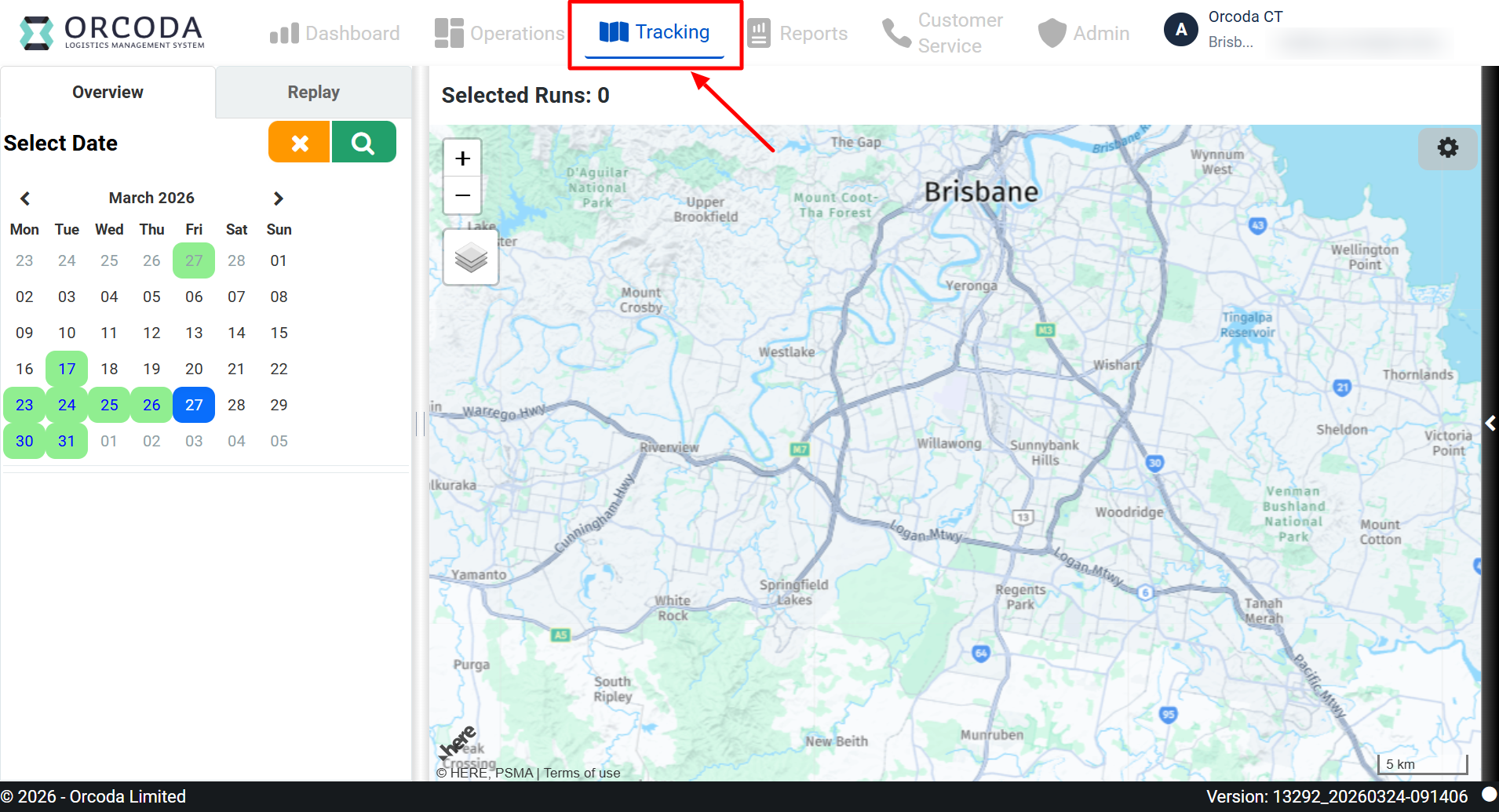
Tracking is a major tab in the Transport 360 banner and can be accessed by clicking on the tab labelled Tracking.
1. Navigate to the Tracking Tab from the primary navigation menu at the top of the screen.
2. Clicking on this Tab will display the tracking screen.
Features in Tracking
Load Runs
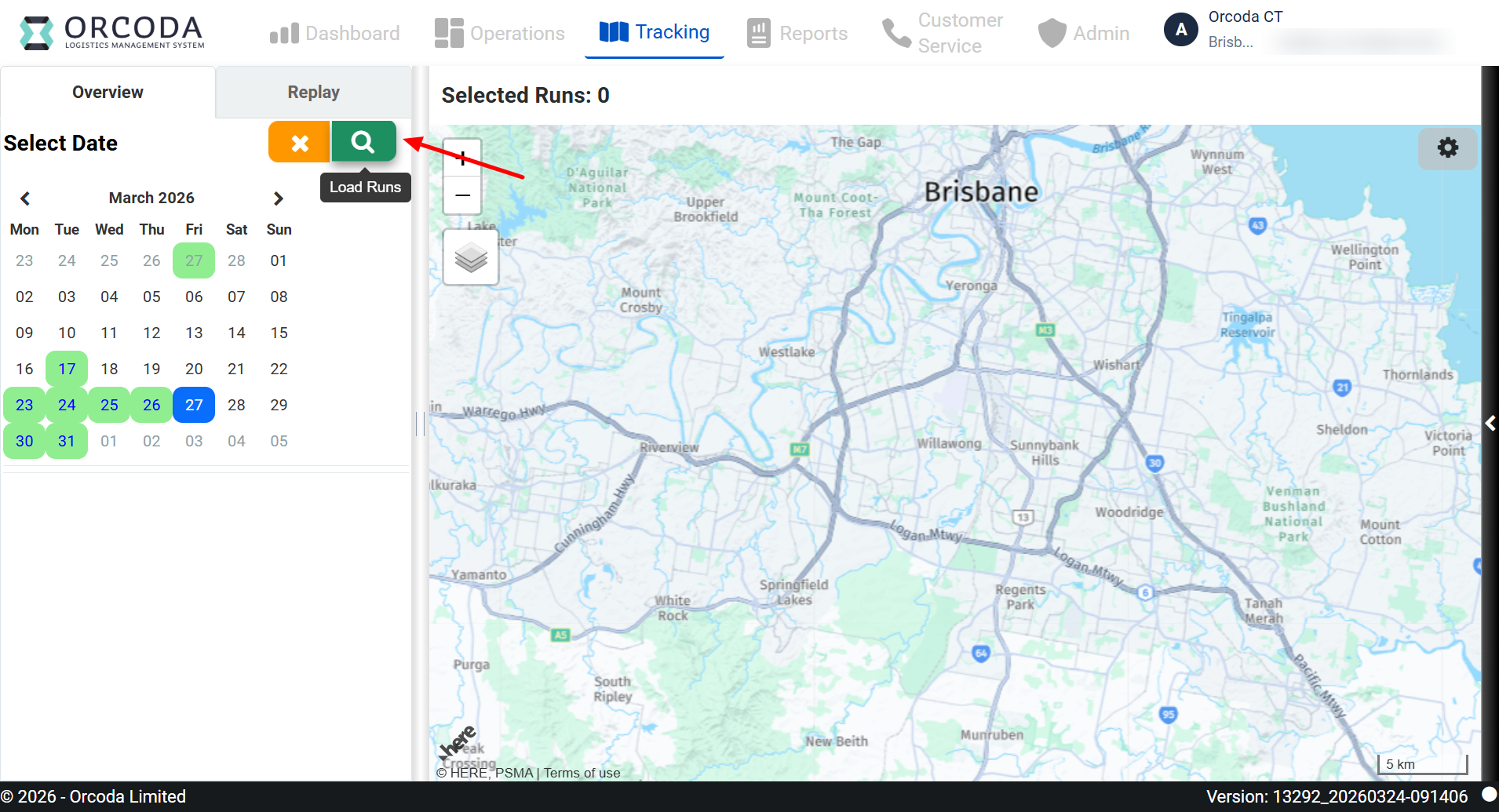
When you navigate to the tracking page the sidebar will display a calendar but no data on the runs or in the map view. First you will need to load the runs for a particular date.
Select the date you would like to view from the calendar and then click the magnifying glass icon to ‘Load Runs’
View runs on the Map
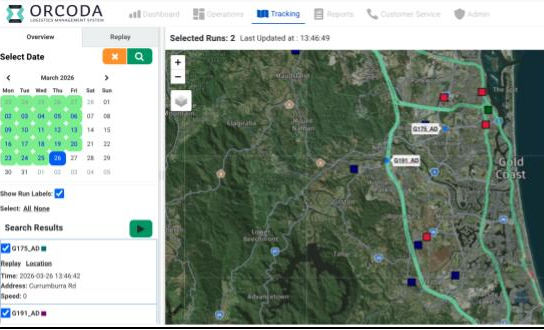
Users can view runs (vehicles) on the map by checking the box next to the run identifier in the left border. Any number of runs can be viewed simultaneously. To see all runs at one time, click on the link All.
Replay
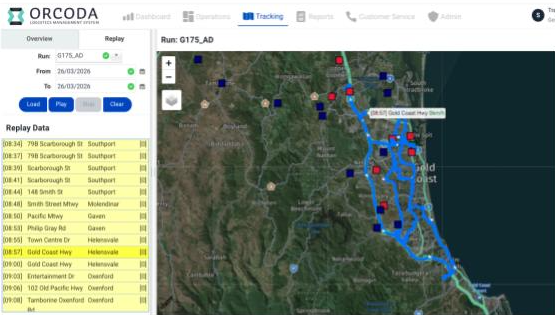
The replay feature can be accessed by clicking on the Replay tab in the sidebar. Use the drop-down menu to select the run (vehicle) and date for replay. Press Play to reveal the replay data (timestamp and GPS point) plus the tracking line on the map view. As the replay moves through the replay data in sequence, the point is highlighted in the Replay Data and on the map as per the diagram.
Key Takeaway: Tracking is a useful feature for observing live location data as well as being able to provide an accurate replay of a run/vehicle’s path during a day. This data is stored in the system and can be called on in the future. For the most accurate real-time tracking data as well as other safety benefits, driver aids and fleet management tools, telematics in the vehicle is required.